AirDrop for Windows: send from iPhone to PC
Windows has no AirDrop, because AirDrop is an Apple feature for Apple devices. To send photos and files from an iPhone to a Windows PC without a cable, pair the two once with an eight-digit code and send from Sendover, and they reach the PC in seconds.
How is Sendover different from the other options?
These are the ways to move photos and files between an iPhone and a Windows PC, and each one has a cost:
- AirDropApple's own feature, and it only works between Apple devices. There is no Windows version.
- Phone Link (Windows 11)Microsoft's app pairs an iPhone with a Windows 11 PC over Bluetooth for calls, messages and notifications. File sharing from the iPhone's share sheet began rolling out to Windows Insiders in December 2024, so it may not be on your PC.
- iCloud for WindowsYou install the iCloud app and sign in with your Apple ID, then wait for photos to sync, which can lag.
- CableNeeds a cable, and the iPhone asks whether to trust each new computer.
- SendoverWorks between an iPhone and Windows over the internet rather than directly between the two devices, so both need a connection. It's a Chrome extension or a website with no install, and what you send is end-to-end encrypted between your devices when they run current versions.
How it works in three steps
-
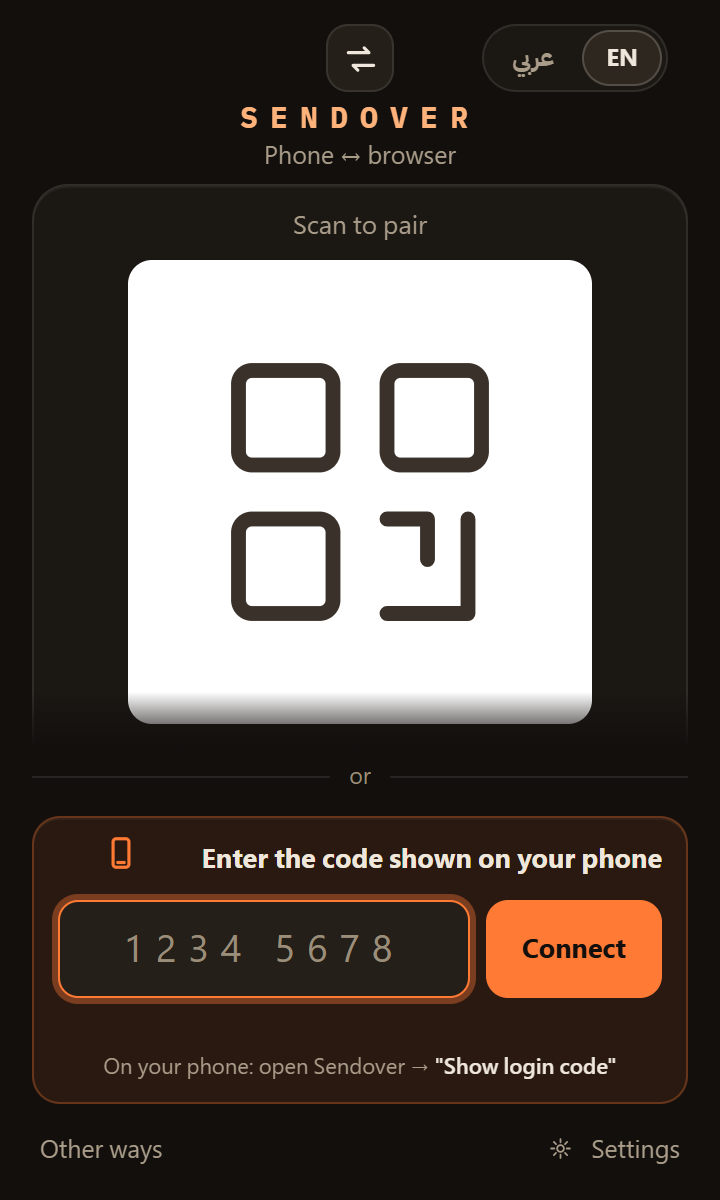
On your Windows PC, install the Sendover extension in Chrome. If you'd rather not install anything, open pc.sendover.dev, but the extension and the site can't both stay paired to the same iPhone: whichever signs in last signs the other out.
On the Windows PC · once
-
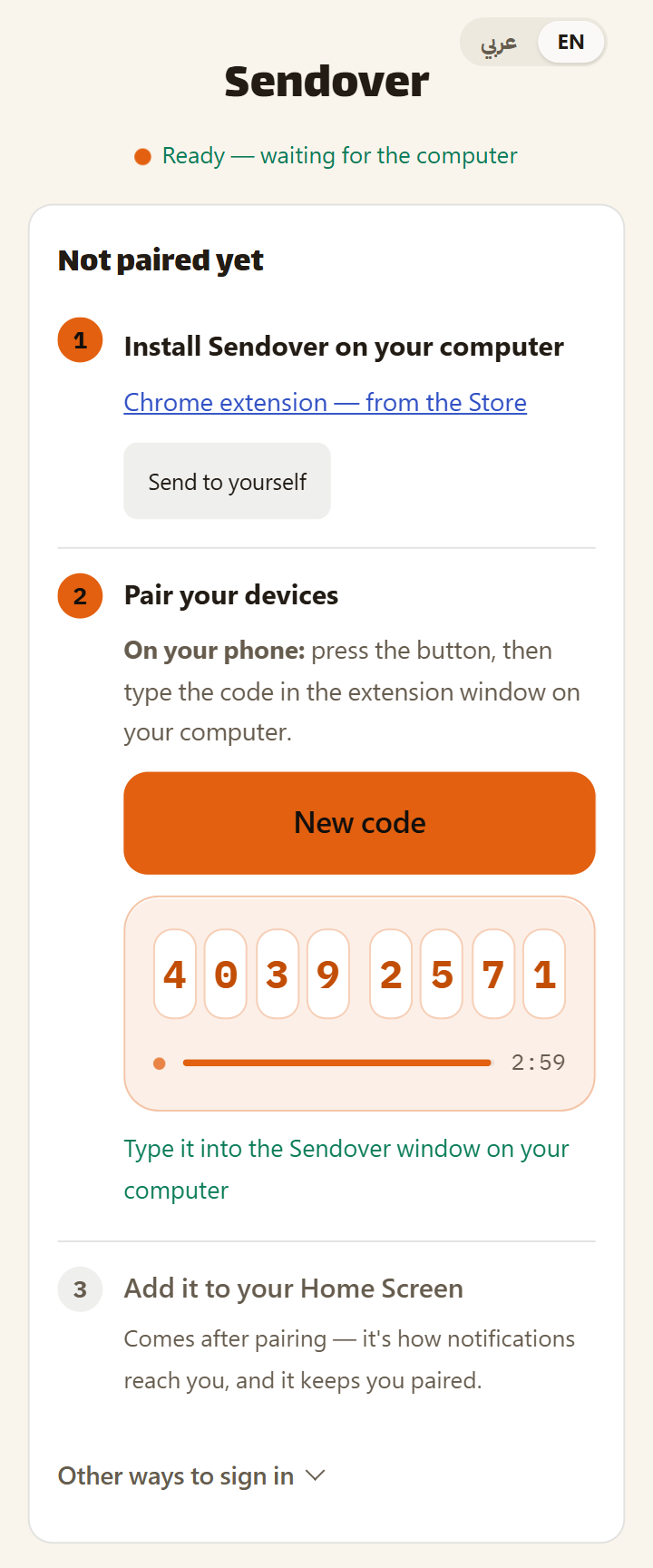
On your iPhone, open sendover.dev in Safari and tap "Show login code". An eight-digit code appears; type it into the extension window on the PC, or into the field on pc.sendover.dev. The code lasts 3 minutes, and "New code" gives you a fresh one.
On your iPhone · once
-
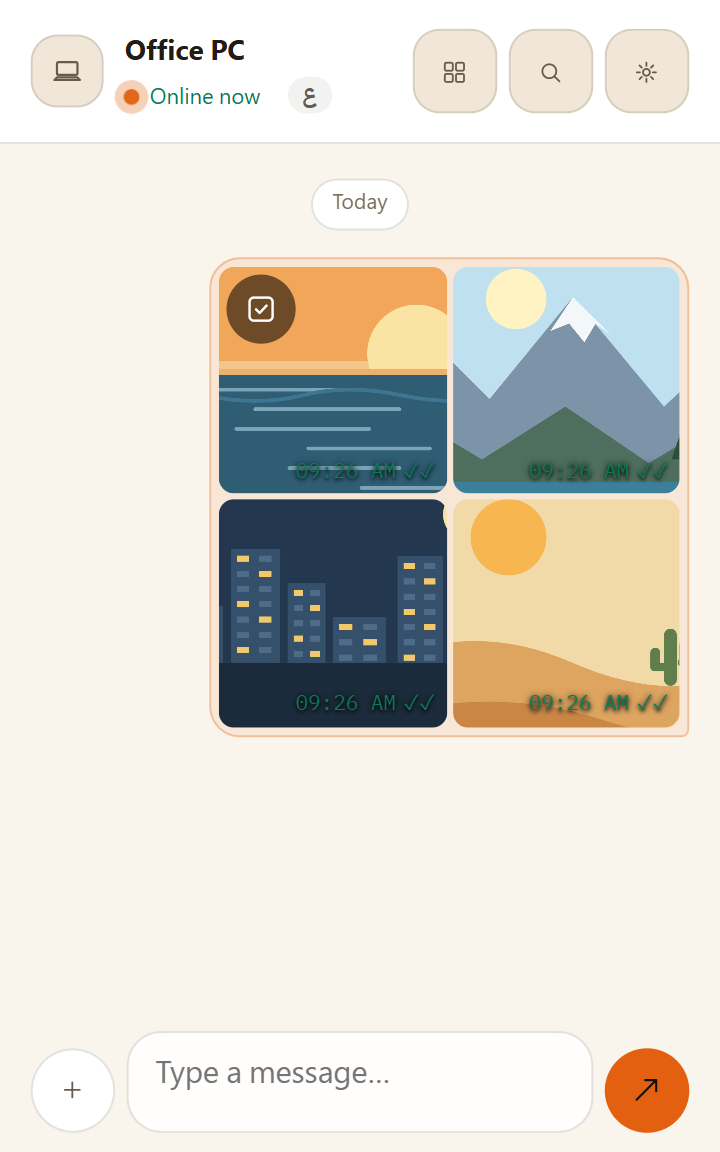
In Sendover on the iPhone, tap + and then File, and choose photos or files; they send as soon as you pick them. They reach the PC in seconds. By default the extension saves them to your Downloads folder under their own names, while on pc.sendover.dev you click to download. If the PC is closed, a file waits on the server for 1 hour on the free plan (30 days on Pro).
On your iPhone · every time after that
Frequently asked questions
Is there an AirDrop for Windows?
No. AirDrop is an Apple feature for Apple devices, and there is no Windows version. To move photos and files between an iPhone and a Windows PC without a cable, you can send them through Sendover.
Can I share from the Photos app straight to Sendover, like with AirDrop?
No. Sendover doesn't appear in the iPhone share sheet, so you open Sendover, tap + and then File, and choose your photos. That is a real difference from AirDrop, and it's better to know before you start.
Does it work on Windows 10 and 11?
Yes. The Chrome extension works on Windows 10 and 11 with Chrome 127 or newer. If you use another browser, try pc.sendover.dev, which runs in any modern browser.
Does it work without internet, like AirDrop?
No. AirDrop sends directly between the two devices. Sendover sends through the internet, end-to-end encrypted between your devices when they run current versions, so both devices need a connection.
Doesn't Windows 11 already have a way to receive files from an iPhone?
Microsoft's Phone Link app connects an iPhone to a Windows 11 PC over Bluetooth, and file sharing from the iPhone's share sheet began rolling out to Windows Insiders in December 2024. If your PC offers it, it needs the Link to Windows app on the iPhone. Sendover works through a Chrome extension or a website instead, over the internet.
Is Sendover free?
Yes. You don't need an account, and each photo can be up to 10 MB. Each photo or file counts as one send and the free plan allows 10 sends per hour, so a batch of 30 photos won't fit into one hour. Pro raises those limits: SAR 7 a month, SAR 30 for 6 months or SAR 36 for a year.
Can I send from Windows to the iPhone too?
Yes. In the extension, type a message or attach a file and send, or right-click a link or selected text on any page and choose "Send link to my phone" or "Send text to my phone". If Sendover isn't open on the iPhone, what you sent waits for you: on the free plan texts and links stay for 24 hours and files wait 1 hour, and on Pro everything stays for 30 days.
On iPhone: open sendover.dev and add it to your Home Screen.