Copy text from phone to PC
Copy the text on your phone, open Sendover, tap + and then Paste, and the text lands in your computer's clipboard, ready for Ctrl+V. That works with the Sendover Chrome extension, and a message you type into Sendover arrives as a message with a copy button instead.
How is Sendover different from the other options?
Here are the common ways to get text from a phone to a computer, and what each one costs:
- Messaging or emailing yourselfYou still have to open the app or the mailbox on the computer, find the message and copy the text out of it.
- A shared note or documentIt syncs, but you sign in on the computer and open the note before you can copy.
- SendoverYou copy on your phone and tap Paste, and the text is already in the computer's clipboard, with nothing to open. The limits: only text sent with Paste is copied automatically, and a typed message arrives as a message instead. The extension copies in the background, while pc.sendover.dev copies only when its tab is in front.
How it works in three steps
-
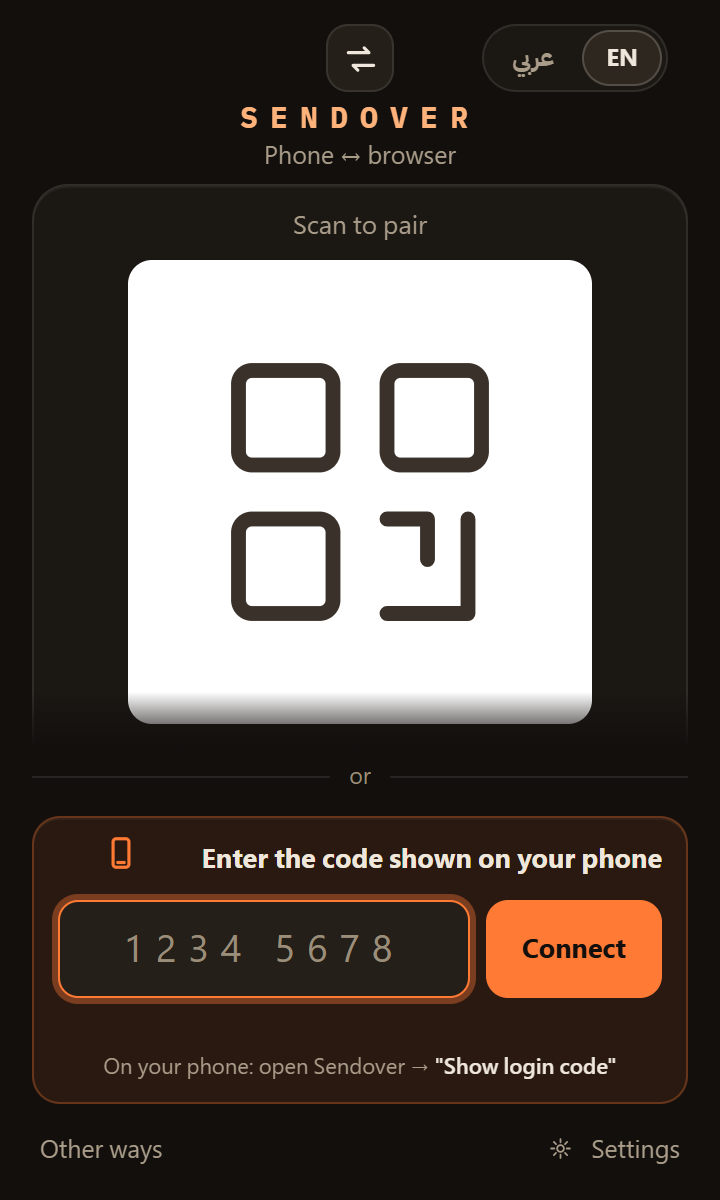
Install the Sendover extension in Chrome on the computer where you want the text to arrive. Copying text sent with Paste to the clipboard is on by default.
On the computer · once
-
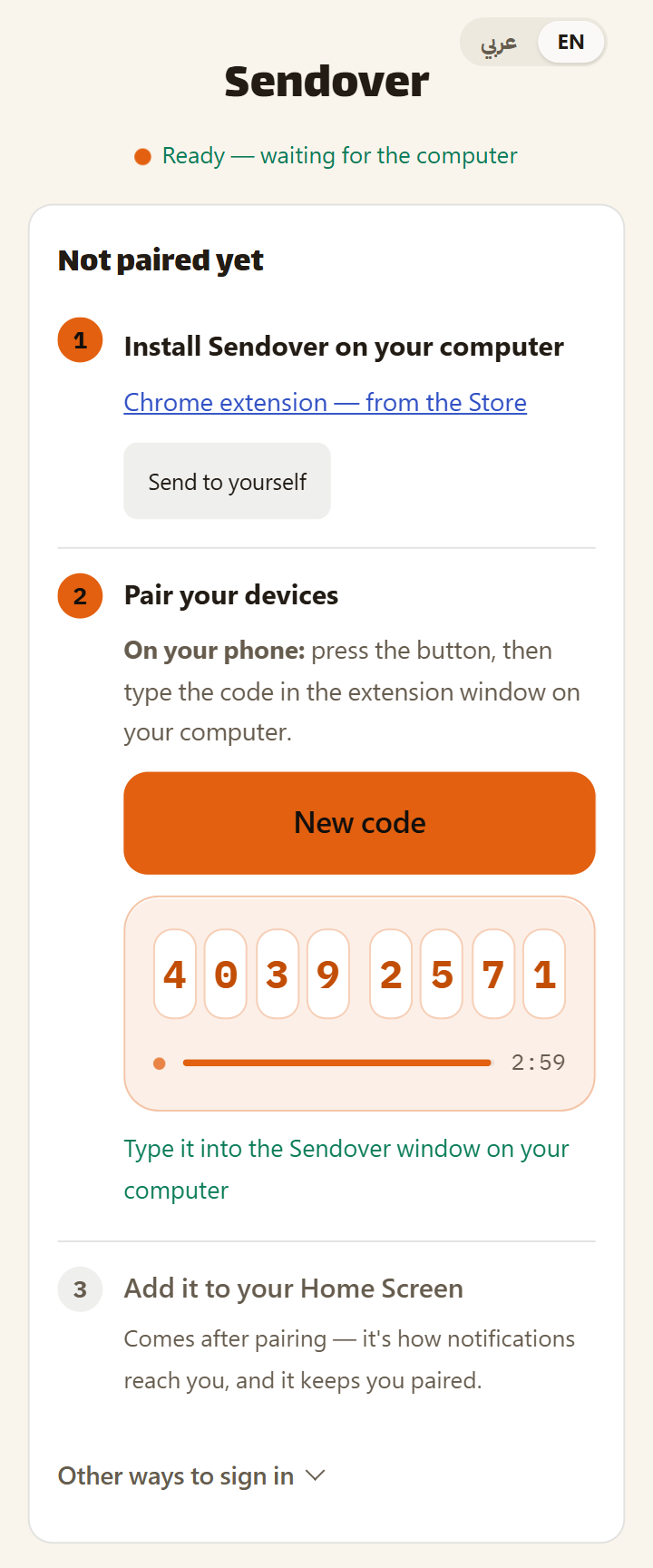
On your phone, open sendover.dev and tap "Show login code", then type the eight digits into the extension window. On a phone that is already paired, go to Settings → "Sign in on browser" → "Show a code to enter in your browser" instead.
On your phone · once
-
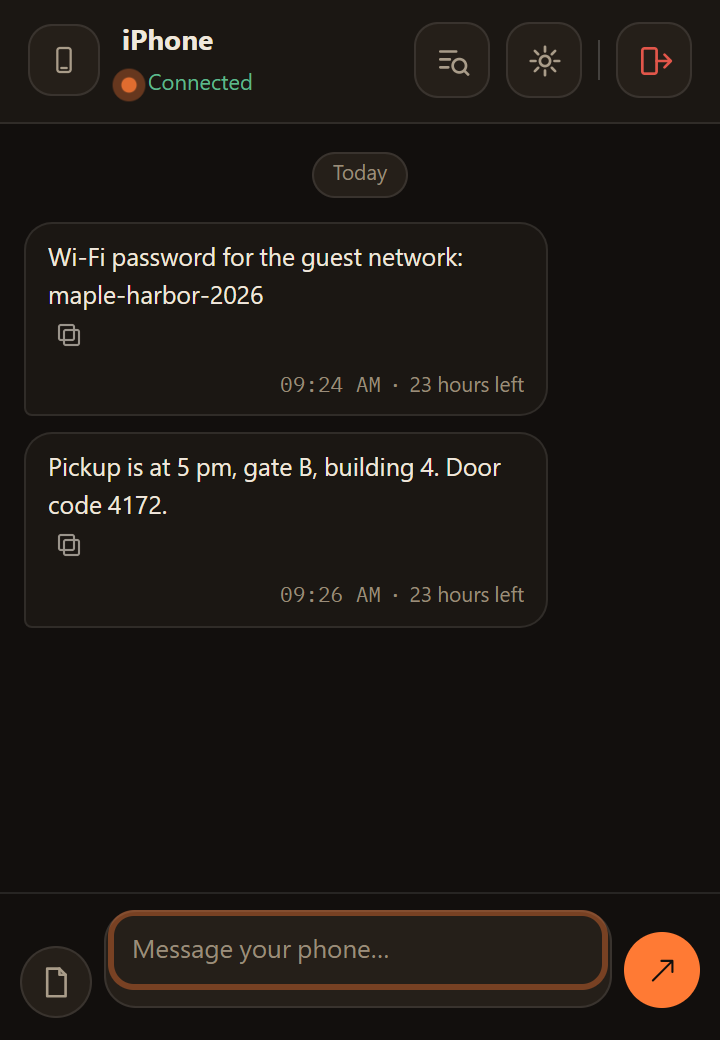
Copy the text on your phone. In Sendover, tap + and then "Paste". The text goes straight into the computer's clipboard, so press Ctrl+V (Cmd+V on a Mac) where you want it. Text you type into Sendover instead arrives as a message with a copy button, like the two below.
On your phone, then on the computer · any time after that
Frequently asked questions
Does the text really land in the clipboard?
Yes, when you send it with the Paste button and your computer runs the Sendover extension, where copying is on by default. A notification tells you it was copied from your phone. You can turn the automatic copy off in the extension's settings.
What happens to a message I type in Sendover?
It arrives on the computer as a message with a notification, and it isn't copied automatically. Click the copy button under it, then paste it where you need it. If you want text on the clipboard without that extra click, copy it on your phone and send it with Paste.
Can I copy text to my computer without installing the extension?
Yes, with pc.sendover.dev, which runs in any browser with no install. Text sent with Paste is copied automatically only while the pc.sendover.dev tab is in front. Otherwise it waits as a message on the page, so click its copy button and then press Ctrl+V. A phone pairs with one computer at a time, so if you also use the extension, opening pc.sendover.dev with this phone signs the extension out.
How do I copy text from my PC to my phone?
In Chrome with the extension, select the text on any page, right-click and choose "Send text to my phone". You can also type or paste it into the extension and send. It arrives in Sendover on your phone as a message, and pressing and holding the message lets you copy it.
Does it work with an iPhone?
Yes, through the web app: open sendover.dev in Safari and add it to your Home Screen. The Paste button is in the menu behind the + button, and Sendover doesn't appear in the iPhone share sheet.
How long does the text stay available?
On the free plan, texts and links stay in your Sendover history for 24 hours, and on Pro for 30 days. Copy what you need within that time, because after it they are removed.
Is it free, and is it private?
Yes to both. Sending text costs nothing on the free plan, which needs no account and allows 10 sends per hour and 10 MB per file. When both devices run current versions the text is encrypted end to end, so our server can't read what you copy. Pro adds higher limits for SAR 7 a month, SAR 30 for 6 months or SAR 36 for a year.
On iPhone: open sendover.dev and add it to your Home Screen.