Send files to yourself without WhatsApp or Telegram
You can send files to yourself on WhatsApp or Telegram, but every transfer takes several steps in an app built for conversation. Sendover does only the transfer: install the Chrome extension on your own computer, or open pc.sendover.dev on one that isn't yours.
How is Sendover different from the other options?
Messaging yourself works, but those apps were built for conversation. Here is what each way costs:
- WhatsApp or Telegram desktop appBuilt for conversation, so it loads your chats and media when you open it, which can take a while.
- WhatsApp Web or Telegram WebOn a computer that isn't yours it shows your chat list on a screen you don't control, and you have to remember to log out.
- Email or cloud storageYou upload from the phone, then sign in to your account on the computer to download the file, and sign out afterwards.
- SendoverOn your own computer the extension saves what you send into Downloads by default, under its own name, with no app to open. On someone else's computer, pc.sendover.dev needs no install and no account, and you sign it out before you leave, from your phone or from the page itself. The cost: on pc.sendover.dev you click to download each file, and there is no right-click menu.
How it works in three steps
-
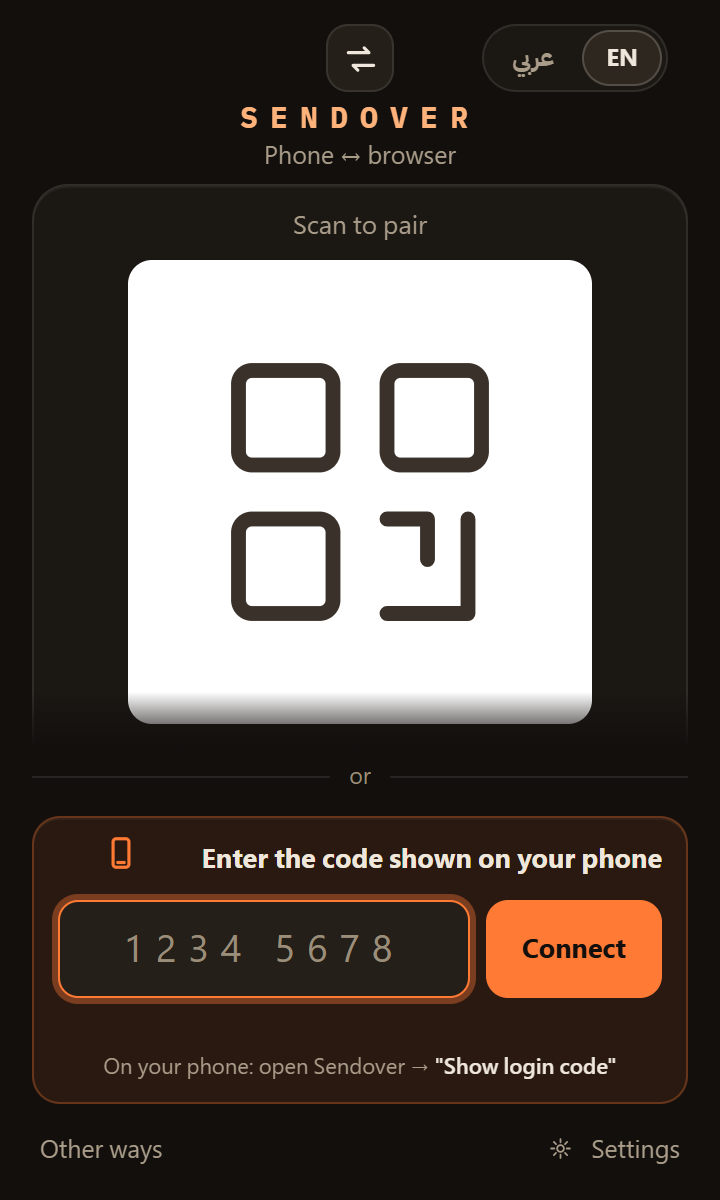
On your own computer, install the Sendover extension in Chrome. On a computer that isn't yours, open pc.sendover.dev instead, with nothing to install.
On the computer · once
-
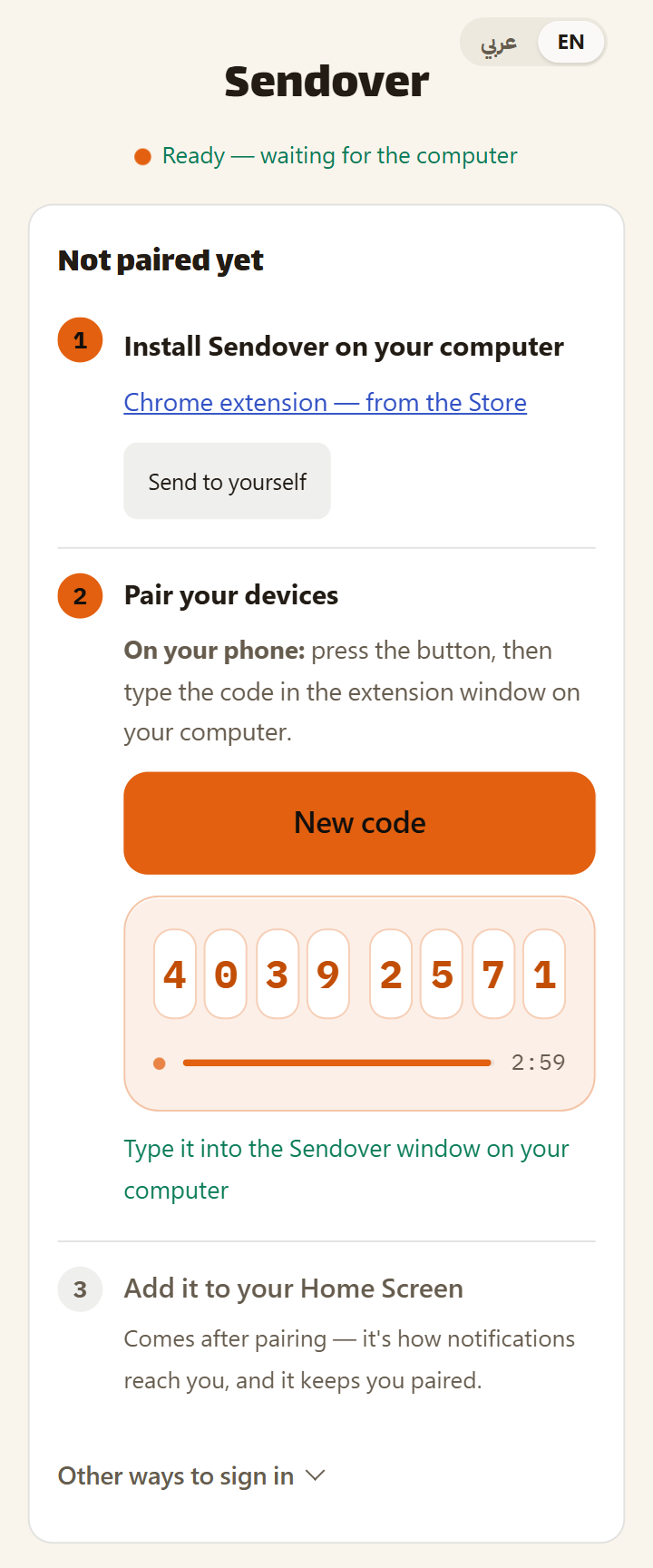
On your phone, open sendover.dev. If it isn't paired yet, tap "Show login code". If it's already paired, go to Settings → "Sign in on browser" → "Show a code to enter in your browser". Type the eight digits into the extension window, or into the field on pc.sendover.dev. The code lasts 3 minutes.
On your phone · once for each new computer
-
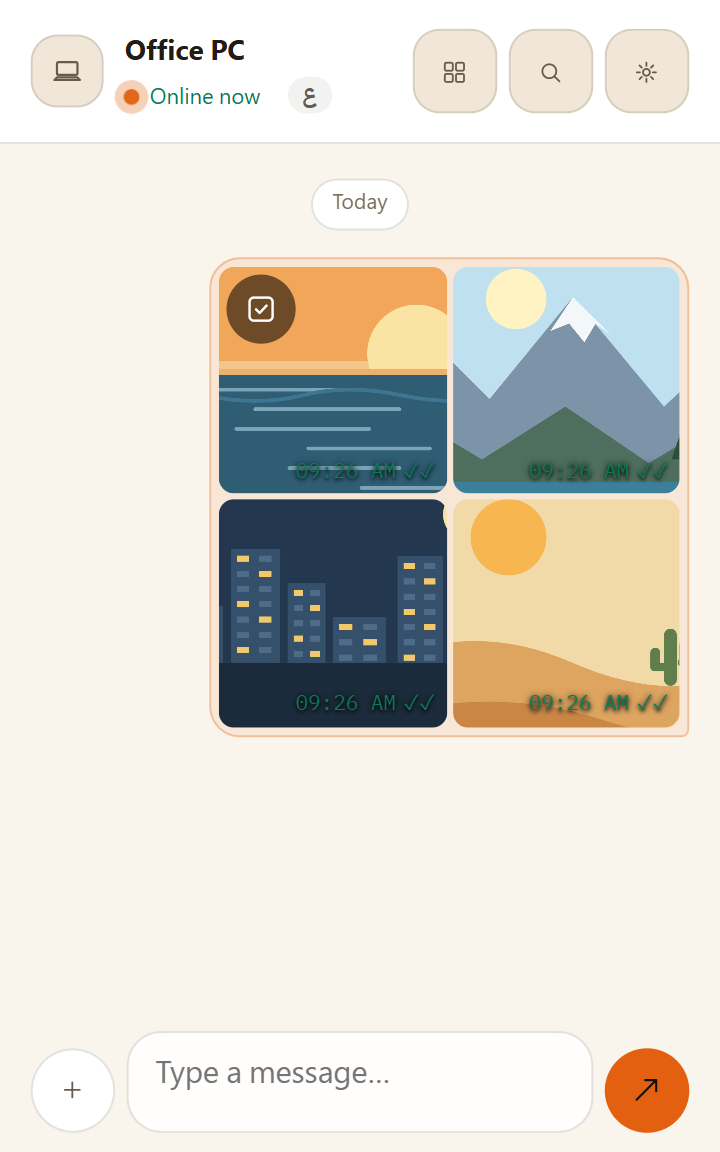
In Sendover on your phone, tap + and then File, and choose files or photos; they send as soon as you pick them. With the extension they land in your Downloads folder under their own names by default. On pc.sendover.dev you click to download each one. On the free plan each file can be up to 10 MB, and each one counts as one of your 10 sends per hour.
On your phone · every time after that
Frequently asked questions
Why not just message myself on WhatsApp or Telegram?
You can, and for an occasional file it works. The catch is that those apps are built for conversation: on a computer you open an app or web page that loads your chats, and on a computer that isn't yours you have to remember to log out. Sendover does only the transfer, with no chat list to open.
Can I use it on a work or print-shop computer?
Yes, that's what pc.sendover.dev is for: nothing to install, no account, and your chats and accounts stay closed. Send the file from your phone and click to download it. Before you leave, while the page is still open, go to Settings → Connection → "Sign out browser" in Sendover on your phone, or click the sign-out icon in the page's header (its tooltip says "Unpair this browser") and confirm with "Unpair". That browser then forgets the pairing and everything it received; from the phone you see "Computer signed out ✓ — you're still paired". If you close the page first, the sign-out may never reach that browser: it waits on the server for 1 hour and goes to the next computer that connects to your pairing, which could be your own extension once you pair it again, and the room code stays saved in that browser. Files you downloaded stay in the Downloads folder, so delete them if the computer isn't yours.
Does pc.sendover.dev affect the extension on my own computer?
Yes, if the extension is paired with your phone. Sendover allows one computer at a time for each phone, so when pc.sendover.dev pairs with your phone, the extension on your own computer is signed out and its message history on that computer is cleared. Pair it again with a new code when you are back at your computer.
Does Sendover work with iPhone and Android?
Yes. On an iPhone, open sendover.dev in Safari, add it to your Home Screen and send from inside it by tapping + and then File, because Sendover doesn't appear in the iPhone share sheet. On Android, once sendover.dev is on your Home Screen it shows up in the share sheet, so you can send straight from the gallery or other apps that share files.
Is it free for everyday files?
Yes. There is no account and no charge for basic use. Each file can be up to 10 MB and the free plan allows 10 sends per hour, which is plenty for the occasional document, PDF or photo. If you need more, Pro costs SAR 7 a month, SAR 30 for 6 months or SAR 36 for a year.
Is it private, and how long are files kept?
Your files are encrypted end to end between your phone's web app and the extension or pc.sendover.dev, as long as both run current versions, so the server can't read the files or their names. On the free plan a file you haven't downloaded is deleted after 1 hour, a downloaded one 10 minutes after its first download, and texts and links leave your history after 24 hours. On Pro everything stays for 30 days.
On iPhone: open sendover.dev and add it to your Home Screen.